

Salesforce.com AIR Application 
July 18th, 2007
Since Andre was invited to go on the Adobe AIR bus tour we decided to build a cool sample application that would exhibit some of the cool features of AIR and our components. Since we like to focus on the “business case” for our Ajax components and our custom development, we built an AIR application that integrated with the Salesforce.com API. Being the RIA nutters that we are and knowing that most people would be building Flex based applications - which we are currently building a few of for various customers - we decided to build an HTML / Ajax based application instead.
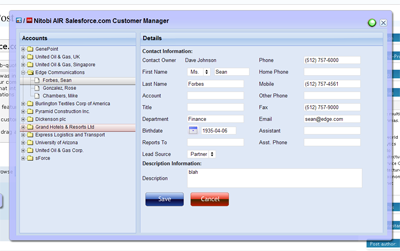
The cool AIR features that we wanted to show off were things like
- 1. custom chrome to make things look hawt
- 2. drag and drop from the desktop for vcard integration
-
3. file system integration for taking things offline
Since we had a pretty tight timeline we went fairly simple and built the application in about three person weeks. The idea was centered around a mobile sales person being able to have access to their Salesforce Account and Contact data while online or offline. Of course, being an Ajax application it should also prove to be a much nicer interface than the current Web 1.0 based Salesforce user interface - man would I like to be able to redesign the Salesforce UI!
Custom Chrome
The most important part of the application was to make it look hawt. This involved a bit of design assistance from Alexei and the creation of some JavaScript and text based activity indicators since animated gifs don’t work in the current AIR beta  What we did use a lot though was the CSS3 border-image style. It doesn’t seem to work quite right but if you just go with it you can make something that looks half decent.
So on the outer window we applied a style like this:
[code]
-webkit-border-image:url(../images/app-border.png) 18 18 18 18 stretch stretch; border: 18px;
[/code]
Where the app-border.png looks like this:

As well as looking great the chrome needs to be functional. It needs to have minimize, maximize, restore and close buttons. It needs to be resizable and draggable. Maximize, minimize, restore and close are easy - for example:
[code]
window.htmlControl.stage.window.restore();
[/code]
All of those methods (restore, close, minimize, maximize) are created on the nitobi.air.Window JavaScript class. To enable draggability we attach an HTML event handler to the our main window DIV element like this:
[code]
nitobi.html.attachEvent($(”main_window”), “mousedown”, handleMove, this);
[/code]
The handleMove method is shown below where we just do a quick check first to see if the element that the user is trying to drag has the chrome class on it - this lets us make the window draggable from various points like the header and around the edges. Once they get the chrome we just call startMove() like this:
[code]
nitobi.air.Window.prototype.handleMove = function(evt)
{
if (nitobi.html.Css.hasClass(evt.srcElement, “chrome”))
window.nativeWindow.startMove();
}
[/code]
Desktop Integration
The other cool thing about using AIR is that rather than having some ridiculous multi file upload utility written in Java or Flash, with AIR we can just take files from the desktop and drag them onto the application. What this means is that we can take things like VCards or CSV files full of contact information and have them automagically entered into Salesforce. If offline they get saved as updategrams and get uploaded once the computer is back online. The events for the drag and drop are Flex events on the AIR htmlControl but they connect to JavaScript methods as handlers.
[code]
window.htmlControl.addEventListener(
runtime.flash.events.NativeDragEvent.NATIVE_DRAG_ENTER,
nitobi.lang.close(this, doEnter));
window.htmlControl.addEventListener(
runtime.flash.events.NativeDragEvent.NATIVE_DRAG_DROP,
nitobi.lang.close(this, doDrop));
[/code]
When the drag operation enters the AIR window we call the acceptDragDrop method with the htmlControl as the only argument. This will enable dropping onto our HTML application.
[code]
nitobi.air.Window.prototype.doEnter = function( e )
{
if(e.transferable.hasFormat(air.TransferableFormats.FILE_LIST_FORMAT ) ) {
runtime.flash.desktop.DragManager.acceptDragDrop(window.htmlControl);
onDragEnter.notify();
}
}
[/code]
Now that we have enabled dropping on our HTML app we can actually process the information when it is dropped by accessing the transferred data like this:
[code]
nitobi.air.Window.prototype.doDrop = function( e )
{
var files = e.transferable.dataForFormat(
air.TransferableFormats.FILE_LIST_FORMAT,
air.TransferableTransferMode.CLONE_PREFERRED );
for( var f = 0; f < files.length; f++ ) {
onDragDrop.notify(files[f]);
}
}
[/code]
In this case we specify that the drop should be a list of files and we are able to iterate over that list to add each of the VCards to Salesforce.
Offline Operation
Finally, we did some filesystem integration for working offline and that was pretty cool. Rather than using the SQL-Lite database that comes with AIR, we wanted a solution that would be more conducive to a web way of working - ie something that will essentially queue HTTP POSTs and subsequently POST them when a network connection is present. Because frankly, unless you have A LOT of data on the client and interfacing to a SQL-Lite database is generally going to be overkill and make a lot more work for the developer since they will have to write not one backend in their server language of choice but also a client side backend in JavaScript. Anyhow, in the Nitobi CompleteUI framework, all changes on the client are stored as XML “updategrams”. So it was a pretty easy task to put a layer between the client side JavaScript DataTable and the XMLHttpRequest that sends data to the server when it is “saved”. Instead of the data being sent to the server with an XHR, if the client is offline the updategram is just persisted to disk. Even when online, the data is continually saved to the disk for offline use at any time. All this took very little extra coding since we just serialized the server messages rather than actually transforming them into SQL statements that would store the data in SQL-Lite.
For all of this to work we needed to be notified when the computer is connected to the network. This is done in the nitobi.air.Window class by using the AIR service monitor. This has the additional requirement of having the servicemonitor.swf library in the web page by using a script tag with the src as servicemonitor.swf. To create the service monitor we do something like this:
[code]
var req = new air.URLRequest(’http://www.adobe.com’);
this.monitor = new window.runtime.air.net.URLMonitor(req);
this.monitor.addEventListener(
air.StatusEvent.STATUS, handleStatusChange
);
this.monitor.start();
[/code]
Where the handleStatusChange method will notify any objects that are connected to the the onOnline and onOffline events of the nitobi.air.Window class.
[code]
nitobi.air.Window.prototype.handleStatusChange = function(evt) {
// Fire the event for online / offline notification
if (evt.code == “Service.unavailable”)
onOffline.notify();
else
onOnline.notify();
}
[/code]
For writing the data to disk we use the AIR filesystem integration and wrap it all in two IO methods for reading and writing. The air.File.applicationStorageDirectory is (on Windows) in c:\documents and settings\username\application data\Application-Name folder.
[code]
nitobi.data.IO.readXml = function(filename) {
var file = air.File.applicationStorageDirectory.resolve(filename);
var stream = new air.FileStream();
stream.open(file, air.FileMode.READ);
var str = stream.readMultiByte(file.size, air.File.systemCharset);
stream.close();
return nitobi.xml.createXmlDoc(str);
}
nitobi.data.IO.writeXml = function(xmlDoc, filename) {
if (typeof xmlDoc != ’string’) xmlDoc = nitobi.xml.serialize(xmlDoc);
var file = air.File.applicationStorageDirectory.resolve(filename);
var stream = new air.FileStream();
stream.open(file, air.FileMode.WRITE);
var str = stream.writeMultiByte(xmlDoc, air.File.systemCharset);
stream.close();
}
[/code]
I think that those were definitely the coolest parts of the application and made for a a pretty sweet little app for managing Salesforce Contacts and Accounts. There is still a little more work that I would like to do in the coming weeks like allowing adding and saving of both Contacts and Accounts without VCards as well as some other searching features. Alas, this will have to do for now  Also, when Adobe gets XSLT support in there it will be even more awesome!
You can check out the half baked source code here and get the AIR application for installation here. I am working on a version of the AIR app that will allow the user to enter their Salesforce.com credentials and actually see their data - and there will be a HUGE disclaimer that you use at your own risk 
Update: I just found out that the Mac version of AIR does not have XPathResult (!!!) so selectNodes doesn’t work … sorry Mac users but it should be fixed soon.
 Del.icio.us
This entry was posted on Wednesday, July 18th, 2007 at 8:34 pm and is filed under AJAX, Nitobi, Web2.0, air, completeui, onairbustour, salesforce. You can follow any responses to this entry through the RSS 2.0 feed. You can leave a response, or trackback from your own site.
 Entries (RSS)
and
Entries (RSS)
and
July 19th, 2007 at 12:18 pm
really interesting, but the AIR installer is unavailable
July 19th, 2007 at 6:04 pm
Nice work
the link http://blogs.nitobi.com/andre/downloads/CustomerManagerAIR.zip dosn’t work
July 20th, 2007 at 3:27 am
Looks nice,
But a bit buggy.
The form select fields appears not where it should.
When you click on select arrows the div with select options appears far away on the right
July 20th, 2007 at 3:56 am
Hi Juan,
Sorry that was my fault. You can download a zip now and then unzip and you can install the AIR app. It’s just an issue with our server we have to fix.
Thanks!
Andre.
July 21st, 2007 at 10:38 pm
It is a bit buggy still - partly due to my rush job on building it and partly due to the fact that AIR is still in beta. The select boxes appearing off the right is pretty bizarre but I have mentioned it on the AIR forum.
October 1st, 2007 at 2:15 pm
[...] I’m here in Chicago attending MAX ‘07 with Andre. We were surprised and thrilled today to see the Nitobi Salesforce.com AIR application demo’d by Ed Rowe, lead developer for Adobe Integrated Runtime at the keynote on Monday morning! (see photo). We’re really thrilled about AIR, mainly as a tool for increasing the penetration and relevance of SaS applications and also distributed Enterprise Software that we build in our consulting services. [...]
December 14th, 2007 at 4:27 am
[...] Flex has a hard time fitting into conventional - and I dare say preferred - web development processes, which will keep it on the fringe for some time to come. The process that Flash and now Flex developers go through when building an application is that they have Flex builder to design their application and maybe write some ActionScript to access some web service endpoints on a server somewhere. Then the developer needs to build their web service endpoints using a different tool (likely Eclipse or Visual Studio). Everything is separated between the client and server only connected by the web service endpoints yet the client side development is still not strictly for a designer but a designer and an engineer need to work on the Flex application. One interesting thing about this approach to development is that it fits in well with the enterprise SOA sort of idea; the Flex app is only a consumer of enterprise services and does nothing on the server. This is one reason that Flex is becoming popular in applications for SAP and Salesforce I think. However, hat is not to say that Ajax has no place in enterprise applications. The one thing that I do really like about Flex development is the declarative approach which few Ajax frameworks have done, I digress. [...]