Skip to Navigation | Skip to Content


PhoneGap Build Icon Support for Android | March 15th, 2011

Recently, I’ve been doing more and more work on the build service that Nitobi has in beta, which allows users to submit PhoneGap application assets and download built binaries of their app for iOS, Android, BlackBerry, Symbian and webOS.

This week, Andrew and I are working on delivering full icon support for the supported PhoneGap Build platforms. Today we released Android support. Now, if the config.xml bundled in your application contains <icon> elements with different specified sizes, Build will make sure to use the appropriately-sized ones for Android devices with high, medium and low resolution screens.

Here’s a quick example config.xml from a static page I am running called the John Garrett Drinking Game (Canucks fans, you know what I’m talking about) – the code for this is also available on GitHub:

<?xml version="1.0" encoding="UTF-8"?>
<widget xmlns="http://www.w3.org/ns/widgets" xmlns:gap="http://phonegap.com/ns/1.0" id="com.nitobi.johngarrett" version="1.0">
<name>John Garrett Drinking Game</name> 
<description>
If you're watching a Canucks game, you need play this.
</description> 
<author href="http://www.nitobi.com" email="[email protected]">
Tim Kim, Ryan Betts, Fil Maj
</author> 
<icon src="img/beer_72.png" width="72" height="72" />
<icon src="img/beer_48.png" width="48" height="48" />
<icon src="img/beer_36.png" width="36" height="36" />
</widget>

The three specified sizes you see for the <icon> elements correlate to the three resolution levels supported on Android: 72 by 72 (or above) will be used for HDPI screens, 48 by 48 for MDPI, and 36 by 36 for LDPI.

Later this week we are hoping to land icon support for the rest of the platforms. Stay tuned!

Posted in Uncategorized | No Comments » | Add to Delicious | Digg It

BlackBerry (Legacy) Browser and GPS | January 5th, 2011

I have been working on a BlackBerry mobile web application recently at Nitobi. It’s fairly complex in that it really pushes the abilities of the BlackBerry browser, and on top of this supports a lot of legacy BlackBerries. I’ve never been too fond of developing for this platform, just because of how hard it is to do common tasks like debugging, testing and reproducing issues. This project has taught me a lot: from being more strict with my JavaScript writing style and syntax, to finding workarounds for rendering issues, to getting better at testing on the extremely fragmented BlackBerry platform. However, one thing that stood out for me above all else was how poorly the BlackBerry JavaScript geolocation API behaved – thus, the birth of this post!

Before I begin, I want to say that my experience is based almost entirely off the older BlackBerry browser, not the new WebKit-based (Torch Mobile) browser. However, it wouldn’t surprise me if these issues existed on the Torch as it supports both the W3C Geolocation API and the BlackBerry Geolocation API simultaneously.

First, I’ve noticed that the browser will generally return 0 for both latitude and longitude when you request a location under certain circumstances:

  • If the BlackBerry is in a building or has no clear access to the sky (this is a given)
  • If you restart a device and do not access a Java-based application that queries for a GPS location, the browser will indefinitely return 0/0 as the location. What this means is that you have to open up, for example, the native Maps application, get a fix via it, before the BlackBerry JavaScript geo API will return meaningful data. Counter-intuitive, not obvious at all, not documented, but colloquial reports from other developers confirm these suspicions.

Second, some BlackBerry models do not ship with built-in GPS hardware. For an example, see this Wikipedia article and look at the 8520 (no GPS) vs. 8530 (GPS). Both 8520 and 8530 run similar BlackBerry OS versions, and thus, similar browsers. However, the BlackBerry JavaScript location API will return true when you query:

blackberry.location.GPSSupported

even for a device that has no GPS hardware! Furthermore, the location API methods will also appear to function (the location callbacks get fired, for example). To compound this problem further, the native browser application on BlackBerry allows the user to toggle JavaScript-based geolocation support on and off. What I’ve noticed on some of these models like the 8520/8530 is that this GPSSupported property returns true – even after I went in and specifically disabled JavaScript Geolocation support in the browser options.

Finally, some carriers actually disable location services on their devices (apparently Verizon does this – see last reply on first page of the linked forum post) and force you to
purchase a location-enabling add-on. No way to programmatically check for this in-browser, and also super dirty on Verizon’s part if true!

So in conclusion: although RIM’s documentation and API makes it seem like this is a reliable API to leverage in BlackBerry-targeted web apps, I find it’s hard to trust the BlackBerry JS location API in these cases, and that is a shame because this is our only avenue into GPS-aware functionality on websites targeting BlackBerries (especially older ones).

If you’ve noticed similar issues, I’d love to hear about it – drop me a line!

Posted in BlackBerry | 9 Comments » | Add to Delicious | Digg It

BlackBerry Build Script | December 1st, 2009

Hey everyone,

We’ve been making some exciting progress with PhoneGap recently.

The Ant Window in a PhoneGap BlackBerry project

First, the Mobile Spec – our own homebrew set of tests for the PhoneGap API – is taking off. People are starting to watch it, fork it, and add to it. I am really stoked to see that – keep it coming!

Second, the PhoneGap team has been working on making developing and building PhoneGap applications easier. A big step towards this was putting together some build scripts so that you – the PhoneGap developer – did not have to go through the same, tedious steps to test and develop applications in your platform’s IDE. Shazron recently rolled out an installer for those iPhone PhoneGap developers out there and I saw it in action (as detailed in this post) – it is hot shit. Super-easy! Joe has the same thing going for Android, the Android.jar he put together is a huge step towards that. So, without further ado, I present to you: an Apache Ant build script for PhoneGap BlackBerry! I’ve added it to the repository, as well as instructions in the readme on how to use it.

In my short time using it, the biggest win for me as a developer is the ability to build, sign and deploy to device with one command. It’s super-fast too – way faster than using RIM’s ‘Desktop Manager’ software to load the application onto the device.

If you’ve tried using it, post to the comments and tell me how it went! I’d be glad to help out, too, if you’re having problems.

Have fun!

Posted in BlackBerry, Mobile Applications, phonegap | 5 Comments » | Add to Delicious | Digg It

Mobile Spec is here | November 4th, 2009

The big thing around the office for the past year or so now has been PhoneGap. It’s gaining in popularity every day, and recently we’ve had applications starting to trickle into application stores other than the iPhone one! We now have one application out in the Nokia Ovi store, and one on the BlackBerry App World. I’m pretty excited to see PhoneGap getting a lot of mention all over the place, but this also puts more pressure on the PhoneGap team to have a solid framework that works consistently across all of the platforms that we support currently: iPhone, Android, BlackBerry and (some) Nokia models.

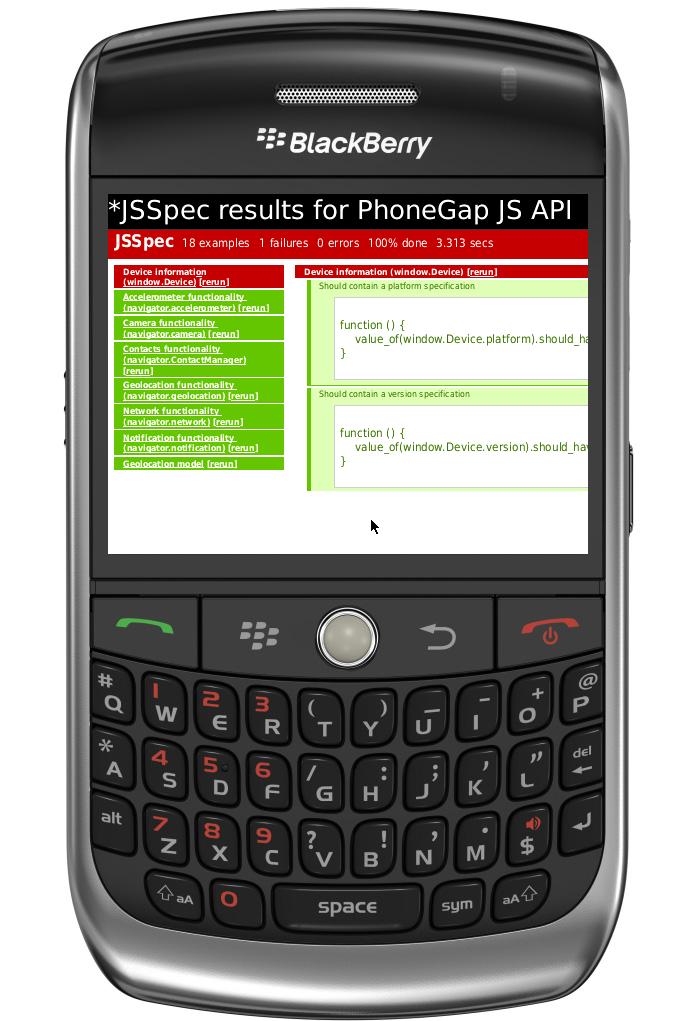
Mobile Spec running on a BlackBerry simulator

Mobile Spec running on a BlackBerry simulator

With PhoneGap being an open-source project, it is sometimes difficult to devote a lot of time to it all at once, and development coming in from user contribution is huge. One thing that is certain about open-source projects, especially ones where there are many contributors and an open development philosophy is used, is that having a set of tests is fairly essential. If developers wants to hop in and help out, in any way that that may be, they need to be sure that the changes they make don’t break the entire application. This becomes even more important as a project gets bigger.

So after that long-winded introduction, I want to point people’s attention to the new Mobile Spec that we have started to work on. You can find it on GitHub. Joe, our main PhoneGap Android developer, has his own fork of it that he’s started to fill up with tests, so we’ve made and are currently making progress on it. Yes! I love automatic regression testing – call me a geek, but I can’t help but have a warm fuzzy feeling inside knowing that test cases for something I’m working on are constantly trickling in :) . Obviously, the spec is in its infancy stages, but it’s a big win. The more we put into it, the easier it will be to develop for it down the road, and the more it solidifies the stability of PhoneGap overall.

Since day 1, PhoneGap’s goal has been for PhoneGap to cease to exist. That is, if all of the big players in the mobile space suddenly decided to work together and unify their third-party application development process, then PhoneGap wouldn’t need to exist as a project. Related to this, the PhoneGap JavaScript API is mostly based off of the HTML 5 specification – open standards are good and healthy for the developer community. What I’m getting at is that the Mobile Spec we’re putting together – maybe / potentially / hopefully – may end up being a decent test suite for the HTML 5 spec, or at least the mobile portion of the spec. Or maybe I’m just too optimistic ;)

We’ve opened this thing up to the community and we want to hear what you guys think. Have a beef with the API? Fork the mobile spec on GitHub, change it to what you think it should be, and then send us a pull request. We’ll definitely have a look.

Here’s to many forks! Cheers!

Posted in Mobile Applications, Test-driven development, phonegap | 6 Comments » | Add to Delicious | Digg It

PhoneGap BlackBerry Progress | September 11th, 2009

Hey everyone,

It’s been a busy past two weeks in the PhoneGap world, especially concerning the BlackBerry branch. We (Nitobi) have put a lot of work into this branch for the past week or two because we’ve got clients who are asking for BlackBerry support for the slew of new mobile applications we’re developing. It’s exciting because these kind of requirements really push the need for expanding the source code and making it better.

I wanted to share with everyone a couple of problems that we’ve encountered recently while working on these projects, and the solutions I employed to solve these problems. For reference, you can find my GitHub repository containing the latest PhoneGap BlackBerry code here.

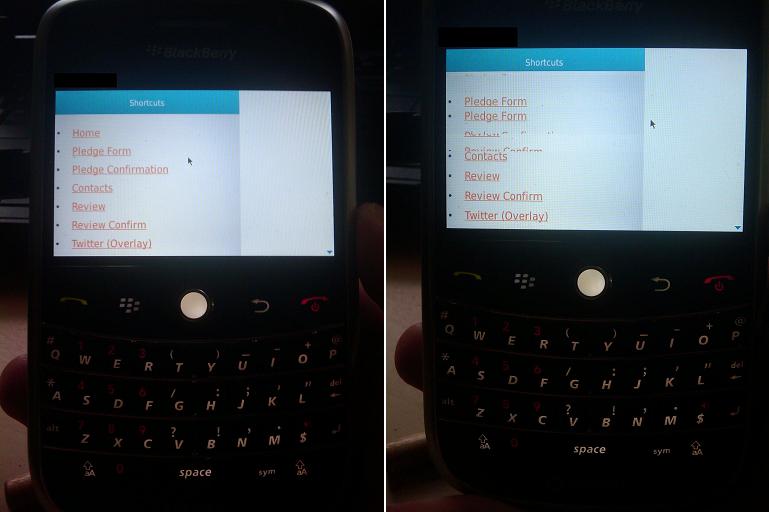
First, we had quite a serious on-device rendering issue that didn’t come up whilst testing with the BlackBerry simulator. Basically, scrolling would cause the HTML page and all related assets being rendered to ‘tear’ up as you scroll. Picture to provide a better explanation:

Initial rendering / tearing issue we experienced.

Initial rendering / tearing issue we experienced – just after load on the left, after scrolling down and then up on the right.

Warning: BlackBerry code and JDE references ahead. Proceed with caution.

Since then I have solved the problem by calling invalidate() on the application’s Screen’s Field objects, and then invoking Screen.doPaint(). One issue still stands that we currently can only do this in a Timer Task that runs every x milliseconds, so intermittent tearing is still an issue. I tried to resolve this by executing the same invalidate / doPaint code in a custom VerticalFieldManager class extension, that hooked in the redraw code on scrolling events. However, this approach just didn’t work. If anyone has any ideas on how to implement this more elegantly, don’t hesitate to contact me or post a comment – I would love to solve this properly.

Second issue I fixed just today, actually, was a pain-in-the-ass requirement for BlackBerry PhoneGap applications to use a special URI when referencing content that is stored locally on the device. For example, up to this point if your main entry page had an <img> tag that referenced a .png file in the same directory as the main entry page, you would have to set the src attribute of the <img> tag to “data:///<absolute folder path>/mypng.png”. This wasn’t a show-stopper, but it did break the mantra of “write once, deploy to all platforms” that PhoneGap strives to uphold (because, for example, PhoneGap iPhone supports relative and absolute paths within your HTML/CSS/JS).

My solution to this problem was to use a big hash table to store the absolute paths of various resources being loaded, and using the referrer IDs of these resources as the key. Then when we load in requested resources, we check if the referring ID is stored in the hash and build up the absolute path (which we need on the native BlackBerry side to grab the resource data) appropriately. I’m nervous about this approach because I can easily see this causing memory issues down the road – too big of a hash table, or keys being too large.

One mitigating option is, instead of using the entire referrer ID (which can get quite big – essentially it’s the Base64 encoding of the referring resource), hash that down to, say, an MD5 hash, and then use that as a key. That should save some space. Currently, the hashing is done on all resources being loaded, which is obviously overkill. Images don’t need to be hashed, for example.

Questions, comments, ideas, suggestions, please, post away! PhoneGap is an open-source, community-based project, so “just fork it” !

Posted in BlackBerry, Mobile Applications, phonegap | 8 Comments » | Add to Delicious | Digg It

WinMoDevCamp and PhoneGap WinMo | August 21st, 2009

Earlier this week Shaz and I had the chance to attend the WinMoDevCamp in the heart of Microsoft-land in Redmond, WA. The conference / camp was nice and small, fairly well organized and lots of fun. I got to meet a ton of interesting and smart people with some great ideas.

An express goal that was given to us by Nitobi ‘upper management’ was to go there, network with the Windows Mobile people, and see what we can do with getting a working branch of PhoneGap running on a Windows Mobile device. Shaz had done some previous research into this work, but we didn’t have more than basic scaffolding source code and a general idea on how to do it. Long story short, we’ve got proof-of-concept code running and available! Check out my PhoneGap repository on GitHub to see the source (the WinMo code is in the winmo directory). We don’t have a large feature set working at this time, but we’re on the right track. I’ll be putting more work into it in the upcoming weeks/months and our goal is to eventually get the PhoneGap framework running on WinMo. If you’re interested in helping out, sign up for an account on GitHub if you don’t already have one, fork the repository and hack away! Feel free to post comments if you have questions as well.

Of course, we’ve got a ways to go. First of all, at least in WinMo version 6, the native browser is based off Internet Explorer 4 (insert snarky comment here), so JavaScript support is… different, to say the least, from what your everyday modern web developer expects. Apparently 6.5+ will solve this problem, but I guess we’ll see. Our goal as developers of PhoneGap is to handle all of these little nuances for our PhoneGap users; whether it is the differences between platform and device code or if it’s all on the JavaScript side, we should be able to abstract / wrap the details away from our end-user. That’s the idea, anyways ;)

Thanks to all the wonderful people at WinMoDevCamp in Redmond, you’re all part of the reason this was possible. Special thanks to Ran, whom I met at the camp itself and who was integral in providing insight into the WinMo platform to get the proof-of-concept demo running and offering suggestions on how to improve the code. A chunk of the code in the repository is basically all his – you rock, Ran! Also thanks to Giovanni and Jennifer for organizing the event, I’m looking forward to future events!

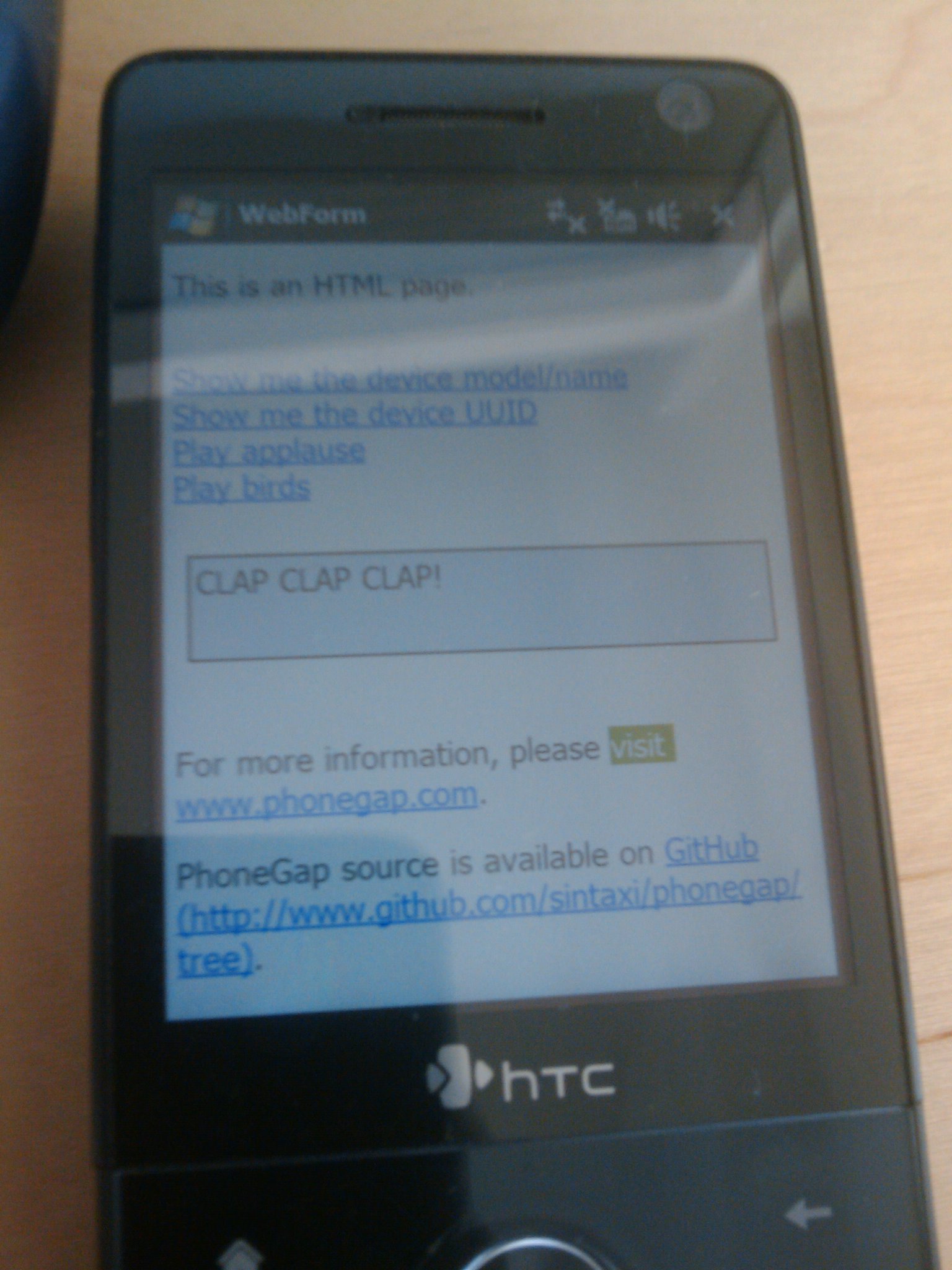
To conclude, here’s a screenshot of the PhoneGap demo app running on a WinMo device. Cheers!

PhoneGap on Windows Mobile device

Posted in Mobile Applications | 4 Comments » | Add to Delicious | Digg It

BeerMe: Android application for beer | July 15th, 2009

NOTE: I’ve since taken BeerMe off the Market – temporarily. Apparently for some users it crashes, so I’m going to fix it up and re-release it.

Today I was finally able to publish an application that I helped out on partly, initially for Dave Johnson’s presentation at Where 2.0 back in May of this year. It’s called BeerMe, and the concept is simple: based on your current location, where is the closest beer? I find myself asking that question a lot, so I figured I might as well make a mobile application that does the job for me.

Dave’s original source for the Where 2.0 app can be found here. My source for the app is right here. Big thanks to Yohei for making the icon and image.

BeerMe uses YQL to retrieve establishments tagged with ‘alcohol’ and/or ‘beer’, and retrieves the closest ones based on a GPS proximity search. The application parses the results and maps them out onto a Google map of your location for you. YQL is awesome, but one limitation is that the data that I am tapping is only an aggregate of U.S. locations. You can, however, contribute to the open data tables, and right through GitHub too! I’m going to see what I can do to contribute – maybe you should too ;)

BeerMe is only in its first version, so there are a few things I still want to do:

  • Be able to grab more information about beer locations (name, address, etc.) through the UI.
  • View the beer locations in a sortable list.

If you’re on an Android phone, you can grab BeerMe directly from the Android Market by clicking here , wait, nope, not yet. Soon! Here’s a snapshot of BeerMe v0.1 in action:

As you can see, apparently the closest beer in Vancouver is in Point Roberts, just over the border :( . Going to have to get some Canadian content into it for it to be useful for me. Anyways, if you have any comments/suggestions about the app, please feel free to leave them here!

Posted in Mobile Applications | 2 Comments » | Add to Delicious | Digg It

Testing in ASP.NET: NUnit, Selenium and other goodies | May 22nd, 2009

Hi again everyone,

I’m a big fan of test-driven development, so I figured, what better way to evangelize than to blog about it? I’m mostly going to talk about TDD within the context of some recent work I’ve been doing at Nitobi. The project I’m working on is all .NET-based, so our main development tools are:

  • Visual Studio (duh!) together with MS SQL Server,
  • NUnit, an open-source unit testing framework for .NET projects, and
  • Selenium RC + ASP.NET driver, a functional testing server and framework for web sites

For the ASP.NET web application I’ve been working on, we decided to implement and maintain two sets of tests: unit tests to make sure our back-end code was sound, and functional tests written for and executed using Selenium, to make sure our application behaved properly from a front-end perspective. However, soon after we started writing tests and feeling good about ourselves, we realized that writing individual test cases is practically impossible from a maintainability perspective, especially the front-end, or Selenium, tests. The reason is that most serious web applications are composed of a lot of “layers”: many levels of navigation, internationalization, even different views/features provided to end-users based on the browser the user is using. Writing a test case for each combination of these variables quickly adds up.

So what were our options? Given that we were using NUnit as the core testing framework, we looked at what add-ins NUnit had to offer. First, there’s the RowTest add-in, which allows you to create data-driven tests. Cool, I thought, exactly what I needed. That was quickly abandoned, though, because you manually had to specify what the data being passed into the test is! Not very useful. Next there was the IterativeTest add-in. Very simple and powerful idea: your test takes as an argument a function that returns an enumerable (something that implements IEnumerable). You can then use this argument in your test, and forget about writing the same test n times. Yay! Perfect, right? Yes… but it wasn’t good enough for us :) . The reason is because the current IterativeTest add-in that is up on the NUnit home page can only accept one enumerable argument (plus only works with NUnit 2.4.5 :s). So what happened was that Arthur C., good friend and ex-co-worker of mine on this project, extended the add-in and made it work with as many arguments as you like, and not just enumerables, too! It works with pretty much any type (including class getters). The add-in then creates combinations of each IterativeTest argument value and creates a separate test case for it. This ended up saving us a lot of time, and came in handy for two big functional, Selenium-based testing scenarios:

  1. A web application that is localized. Internationalization is a big topic these days, and being able to run tests for each set of supported languages is pretty sweet. To use my project as an example, we stored the languages in the database, so our test suite implemented a function that dips into the database, grabs all of the languages and returns them as an ASP.NET ArrayList object. This was then passed into pretty much all of our test cases, so that they were run for each language.
  2. Testing across browsers. Selenium gives us the ability to run the tests in various browser instances, so it’s quite easy to create an ArrayList of browser executable names (’iexplore’, ‘firefox’, etc.) and pass these into your test cases. The test case then creates an instance of the Selenium server, speciying which browser to use as the agent, and executes the test.

So, everyone, please feel free to grab the IterativeTest NUnit add-in that we’ve put together. It works for NUnit 2.4.8, too. The binaries are linked above. For the source, check out my repository that’s up on GitHub. As always if you have stuff to add or comment on, just fork away and keep in touch!

Posted in ASP.NET, Test-driven development | 1 Comment » | Add to Delicious | Digg It

Look What Complete UI’s Grid Can Do, part two | April 1st, 2009

I know everyone’s been waiting for this post with bated breath. The exciting continuation to my post last week is finally here! To recap, on a recent Nitobi project that I worked on, we needed to dramatically improve the user and management experience for the site administrators when using the ‘Control Panel’ part of the website we were building for them. The previous administration panels were whipped together quickly and badly maintained. If you want to see before and after pictures, refer to my previous post.

As I mentioned last week, I was able to borrow fellow Nitobian and lead UX Designer Chris to help with the redesign for this project. Coming from a software development background, I did not realize how little thought I actually put into designing and polishing the user experience of software that I developed, until I worked with Chris. It’s a completely different way of looking at not only software but anything that one makes, creates or designs. I would highly recommend it to any software developer – if you have the time and ability to work one-on-one with an experienced designer, it can be quite a humbling but eye-opening and educational experience.

A quick recap of what we were trying to achieve: the administration page that we used Complete UI’s Grid in is what I’ll call the ‘Resource Administration’ page. At a high level, there is content on the site that needs to be moderated, often edited/tweaked, or deleted. The resource administration page was structured so that the user could search for particular resources, select one resource from a basic grid of results, and then edit that resource’s information using a form that is populated with the selected resource’s information at the bottom of the page. One of the first things Chris and I did was we went through the old administration pages and did some common tasks that our administrators have to do. For each task, we analyzed the workflow and asked ourselves, “Is this the best way to get the job done?” The answer was simply no; we could improve the user experience drastically and not only reduce redundant steps but also improve the page responsiveness. Both of these factors combined to yield a fast and painless (or at least much less so than before) experience for our site administrators. One new feature that we added to our administration page was batch processing – the ability to select many ‘resources’ at once and apply the same operation to all of the items. This is what I’ll be going into detail about in this post.

Batch Processing in Grid

Overview

Implementing batch processing in Grid is not difficult. There are basically three parts to getting it working:

  • Set up your Grid instance to allow multiple row select – a very cool feature.
  • Add some JavaScript functions to your page that grab data from the selected rows in Grid and initiate an XMLHttpRequest (or XHR for short) to some server-side method that runs the batch operation.
  • Finally, write the server-side methods that run the batch operations.

I won’t be able to help much with the last point, but I’ll include a short overview of one of my batch server-side methods for context and example purposes. I’ve also put together a small example archive with a working page set up to show off how this works – only uses local data, though, not real server-side methods, but I hope it’s enough to get the idea across.

Implementation

Grid Instance

Man, I love customizing components declaratively – it’s so easy. To get multiple row select enabled in Grid, simply add this to your <ntb:grid> declaration: rowselectenabled=”true” multirowselectenabled=”true”. That’s it. Easy, huh? More features are available with Grid – too many to name. Check out the HTML Tag Reference over at our Complete UI Wiki to see what other features are available.

JavaScript

So you can now select multiple rows in Grid by Control+clicking. Sweet. Next step is to hook in our batch process initiation. I did this with a simple <button> element. It triggers a JavaScript function when the onclick event is triggered. For example: <button onclick=”batchDelete(’myGridID’);return false;”>Delete</button>. When you click this button, the ‘batchDelete’ JS function is called. Here it is, in all its glory:

function batchDelete(gridID) {
    var g = nitobi.getComponent(gridID);
    if (g.selectedRows.length > 0) {
        // Iterate over selected rows.
        var IDs = [];
        var numSelected = g.selectedRows.length;
         if (confirm('You sure you want to delete these, chief?')) {
            for (var i=0;i < numSelected; i++) {
                var xi = g.selectedRows[i].getAttribute('xi');
                var ID = g.datatable.xmlDoc.selectSingleNode('//ntb:e[@xi=' + xi + ']').getAttribute(g.fieldMap['ID'].substring(1));
                IDs.push(ID);
            }
             // Create and send off XHR request.
             var xhr = new nitobi.ajax.HttpRequest();
            xhr.handler = "delete.ashx?ids=" + IDs.join(",");
            xhr.async = true; // async is true by default
            xhr.completeCallback = function(evtArgs) {eval('var message='+evtArgs.response+';');alert(message.status);};
             xhr.get();
        }
    } else {
        alert('Select something first, champ!');
     }
}

I know, I know, “WTF is this???” Hold on, let me go through it line-by-line and it will all become clear, young Padawan.

  1. function batchDelete(gridID): The batchDelete function takes as a parameter the ID of the Grid instance we’re hooking this up to. This is done so we can easily re-use this function for different Grids/pages.
  2. var g = nitobi.getComponent(gridID): We set a reference to the Grid’s JavaScript object, since we’ll be referring to it back later in the function.
  3. var IDs = []; var numSelected = g.selectedRows.length: We set the IDs variable to an empty array – we’ll be using it to accumulate the IDs of the selected rows. The numSelected variable just tells us how many rows are selected.
  4. The next conditional will just bring up a confirmation dialog asking the user if he or she really wants to delete the selected items.
  5. The for loop here is where the Complete UI magic happens. The loop iterates over the selected rows, and does this:
    1. var xi = g.selectedRows[i].getAttribute('xi'): The rows in the Grid and their related DOM elements have an ‘xi’ attribute – this is a zero-based row index. We set it to a variable and use it in the next step…
    2. var ID = g.datatable.xmlDoc.selectSingleNode('//ntb:e[@xi=' + xi + ']').getAttribute(g.fieldMap['ID'].substring(1)): This is the tough one. First, we call selectSingleNode on the Grid’s datatable object’s XML Doc object. This is just an XML document that houses all of the Grid content’s data. The XPath expression passed into selectSingleNode will select a ntb:e node (think of this as a row object – one ntb:e node per Grid row) with the XI attribute matching to the current selected row that we are processing. Next, we call getAttribute() on this ntb:e node to retrieve the ID attribute from the data. The fieldMap bit inside the getAttribute call is necessary, as the attributes of the ntb:e nodes are named with alphabet letters – starting from a up to z (and then using two letters beyond that, i.e. aa, ab, etc.). However, when you set up your get handler for the Grid, you create and name the data fields whatever you want. That’s where fieldMap comes in – it’s a hash table that maps the data field names you chose to these letters that are used in the Grid’s data table. Finally, we substring that sucka because the first character returned by fieldMap is always an ‘@’ sign. In this line of code, I’m extracting the ‘ID’ field from the data table, for the selected row that I am processing.
    3. IDs.push(ID): Finally, we push the extracted ID onto the IDs array.
  6. Last but not least, we create the XHR object that allows us to communicate with our server-side method:
    1. var xhr = new nitobi.ajax.HttpRequest(): We create the XHR object with this bit of code – it’s a function in the Nitobi Toolkit that will create a cross-browser XHR object. Yes, the XHR is implemented differently in different browsers. *cough* Internet Explorer *cough*
    2. xhr.handler = "delete.ashx?ids=" + IDs.join(","): The handler is the URL to the server-side method that will do the actual delete operations for us. In this case, the handler is called ‘delete.ashx’ (an ASP.NET page), and we tack on a querystring parameter ‘ids’ with the joined row IDs that we accumulated in step 5.
    3. xhr.async = true: This sets the mode of the XHR – we want the XHR to be sent and processed asynchronously, so we don’t hang the browser while our server method is executing.
    4. xhr.completeCallback = function(evtArgs) {eval('var message='+evtArgs.response+';');alert(message.status);}: An optional step, here we assign a JavaScript function that executes once the XHR object receives a response from the server. In this example, my ‘delete.ashx’ script writes out some JSON as a response. One of the members of this JSON object is called ’status’. Basically, once we receive a response from our server script, an alert is shown with the status message sent from the server method.
    5. xhr.get(): The last step, the get() function fires off the XHR.

Server-Side Method

I can’t really help you on this one, totally depends on what platform you are running your website on, what server-side language you’re using, etc. However, what I can tell you is what I did. As you can see, the ‘delete.ashx’ script is called to do the deletes. At a high level, the script processes the querystring and extracts the IDs of the particular items that the user selected in the Grid. In this example, the Grid’s get handler housed the unique database IDs for the items in the Grid in the ‘ID’ field (remember that fieldMap magic?). I send these IDs to the delete script, which parses them and calls a database DELETE operation on database rows with the specified IDs. Simple, no?

That’s it for this week, hope some of you folks out there found it useful, or at least insightful. Next week I’ll talk about using the ImageEditor column type available to sexy up the Grid.
Posted in Complete UI | 2 Comments » | Add to Delicious | Digg It

Look What Complete UI’s Grid Can Do, part one | March 26th, 2009

On a recent Nitobi web development project, we were tasked with improving a social network-ish site’s management and administration pages. Up to that point in the project, the administration panels, as I call them, were fairly neglected and had a couple of different problems:

  • They were slow. As the site was gaining popularity and grew in size, the content that the site housed needed to be managed, maintained, edited, deleted, etc. more and more often. There was also more of this content to manage. These two things compounded together to start slowing the administration pages down.
  • There was little to no design effort put into how the administration panels worked. This resulted in the workflow of the panels to be very cludgy.

First, I enlisted the help of Nitobi’s lead UX Designer, Chris, to help come up with some good designs for the administration panels. We looked at what these management pages provide and how our administrators use them to guide the design, and the end-result is a night-and-day improvement on the previous pages (worth a blog post in itself).

Before

Here is a thumbnail of the administration page before (click for bigger):

After

Here is a thumbnail of the page after we were done with it (again, click for bigger):

The new page is much more concise, with a nicer design and much more responsive user interaction. The grid only summarizes information in each of its rows – each element actually has a lot more content to manage than what is shown in the grid. The old administration page would show this extra content at the bottom of the page (as depicted in the screenshot), which made the page quite overwhelming. In the new page, I removed this section and made a JavaScript and DHTML-based edit ‘dialog’ that housed this extra information, cleaning up the layout and vastly improving the user experience.

Anyways, the point of this post is to show off how I used Nitobi’s own Complete UI component, Grid, in this redesign, and show off some little extra bits that I implemented to improve the user experience that much more. For those that don’t know about it, Complete UI is a sweet suite of open-source web components that you can plug into almost any web page. Grid, one of the components in this suite, is quite extensive, with a lot of little features that make it a powerful tool to be able to plug into any ol’ web page. I’m going to be getting into the details of this component, so it might be useful to have the Complete UI HTML Declaration Reference and Nitobi JavaScript APIs handy. I’ll break up the work done with the Grid over a couple of blog posts, as it is a lot of content. Today, I’ll talk about setting up your own pretty pagination controls.

Custom Paging Controls

One of the reasons the old administration pages were slow is because each page would load all relevant data right away. In today’s AJAX world, this is unnecessary and wasteful. Simple pagination would definitely help with this – why not just load the data we need, as we need it? “But wait a second, here, Filip,” you may be saying to yourself, “the Complete UI Grid already has paging! Why implement it again?” Not that I have anything against the built-in pagination in Grid, but I have something against the built-in pagination in Grid ;) Chris and I wanted the pagination controls to be big and salient and obvious, so he designed some and I implemented them. It was actually quite easy, a little HTML, a couple JavaScript functions and Grid. I’ve set up an archive that you folks out there can download, it contains files and source code necessary to get a skeleton of this example up and running.

  1. First, we disable the built-in button and pagination toolbar in the Grid. You can do this declaratively by specifying the toolbarenabled=”false” attribute of the <ntb:grid> tag.
  2. Here is the small HTML declaration for my custom paging controls that I added to my page:
    <div id="pager_control" class="inline">
    <div id="pager_first" class="inline FirstPage" onclick="Pager.First('myGrid');" data-onmouseover="this.className+=' FirstPageHover';" data-onmouseout="this.className='inline FirstPage';" style="margin:0;border-right:1px solid #B1BAC2;"></div>
    <div id="pager_prev" class="inline PreviousPage" onclick="Pager.Previous('myGrid');" data-onmouseover="this.className+=' PreviousPageHover';" data-onmouseout="this.className='inline PreviousPage';" style="margin:0;"></div>
    <div class="inline" style="height:22px;top:3px;">
    <span class="inline">Page</span>
    <span class="inline" id="pager_current">0</span>
    <span class="inline">of</span>
    <span class="inline" id="pager_total">0</span>
    </div>
    <div id="pager_next" class="inline NextPage" onclick="Pager.Next('myGrid');" data-onmouseover="this.className+=' NextPageHover';" data-onmouseout="this.className='inline NextPage';" style="margin:0;border-right:1px solid #B1BAC2;"></div>
    <div id="pager_last" class="inline LastPage" onclick="Pager.Last('myGrid');" data-onmouseover="this.className+=' LastPageHover';" data-onmouseout="this.className='inline LastPage';" style="margin:0;"></div>
    </div>

    In a nutshell, it has a couple of spans that house the current and total page numbers, and the first/last/next/previous buttons (styles defined via the classes) that call methods in a JavaScript Pager object (more on that next).
  3. Next, we have to somehow tell our server-side data handler to grab only a particular page of data. It doesn’t really matter what language you write your server-side scripts in. All we have to do is pass paging parameters to our server methods via the querystring, and then make sure our server-side methods parse these parameters and use them to retrieve the proper page of data. This is all controlled via the JavaScript Pager object I was talking about earlier, and here is the JS:

    var Pager = {
    PageSize:12,
    CurrentPage:0,
    TotalPages:0,
    TotalRows:0,
    Last:function(GridID) {
    Pager.CurrentPage = Pager.TotalPages;
    Pager.BindToGrid(GridID);
    },
    First:function(GridID) {
    Pager.CurrentPage = 1;
    Pager.BindToGrid(GridID);
    },
    Previous:function(GridID) {
    if (Pager.CurrentPage > 1) {
    Pager.CurrentPage--;
    } else {
    Pager.CurrentPage = Pager.TotalPages;
    }
    Pager.BindToGrid(GridID);
    },
    Next:function(GridID) {
    if (Pager.CurrentPage < Pager.TotalPages) {
    Pager.CurrentPage++;
    } else {
    Pager.CurrentPage = 1;
    }
    Pager.BindToGrid(GridID);
    },
    Reset:function(GridID) {
    Pager.CurrentPage = 0;
    Pager.TotalPages = 0;
    Pager.BindToGrid(GridID);
    },
    // Uses the paging variables in the Pager object to re-bind the Grid with the right page.
    BindToGrid:function(GridID) {
    g = nitobi.getComponent(GridID);
    if (Pager.TotalPages == 0) {
    g.datatable.setGetHandlerParameter('StartRecord',0);
    } else {
    g.datatable.setGetHandlerParameter('StartRecord',(Pager.CurrentPage-1)*Pager.PageSize);
    }
    g.loadingScreen.show();
    g.dataBind();
    }}

    All of the Pager functions take the Grid ID as a parameter, for easy re-use with other Grids, if one so desires. What happens when you call Next(), Previous() or any other function there is the querystring parameters for paging get set in the Grid’s datatable – this is the component that houses the Grid’s data and handles data retrieval from and communication with the data handler server methods (via XHRs). Potentially, you could also pass the pagination size as a parameter, if you wish to dynamically vary it too. Just remember that whatever parameters you set using the Grid’s setGetHandlerParameter (click here for more info – scroll down to the getDatasource() method to see a small example) need to be parsed by your data handler script, otherwise it won’t be used! In my example above, I set a parameter called ‘StartRecord’, which I parse in my data handler and then use in my data retrieval query. Then simply call dataBind() on the Grid to force Grid to re-connect to the handler and retrieve the data.
  4. Finally, we need to update the Pager object with the right number of records retrieved from the database. I did this by assigning an error attribute to the root XML node of the data handler’s response, which would contain the number of rows the server processed, and then hooked in a JavaScript function to the Grid’s OnDataReadyEvent (which gets fired every time a data request from the server is complete) to parse this number back into the Pager object. There are other, probably more elegant ways to implement this part, but it seemed like the quickest way for me, and I didn’t use the error attribute for anything else, so why not? So, first I hooked in a function to the event via the HTML declaration: ondatareadyevent=”HandleReady(eventArgs);”. This is what the function looks like:

    function HandleReady(eventArgs) {
    var g = eventArgs.source;
    Pager.TotalRows = parseInt(g.datatable.handlerError);
    Pager.TotalPages = Math.ceil(Pager.TotalRows/Pager.PageSize);
    $('pager_total').innerHTML = Pager.TotalPages;
    if (Pager.TotalPages > 0) {
    if (Pager.CurrentPage == 0) {
    Pager.CurrentPage = 1;
    }
    } else {
    Pager.CurrentPage = 0;
    }
    $('pager_current').innerHTML = Pager.CurrentPage;
    // Hide Grid loading screen.
    g.loadingScreen.hide();
    }

    The error attribute that we set in the server response is easily accessible via the datatable.handlerError member, as demonstrated in the above function. Once we parse the total rows, we just set the span contents that show off the current and total pages, hide the Grid loading screen, and we’re done!

That’s it for this week! Next week, I’ll post about improving the editing experience in Grid with the help of JavaScript, the ImageEditor column available in Grid, and doing your ‘own thang’ by manipulating the Grid’s DOM nodes.

EDIT: I’ve added before/after pictures of our work, as well as a downloadable example page of the Complete UI Grid with a custom paging control, available -> here <-. Please read the attached readme file to get the example running properly – enjoy!

Posted in Complete UI | 4 Comments » | Add to Delicious | Digg It


Search Posts

You are currently browsing the archives for the Uncategorized category.

Archives

Categories

LinkedIn Profile

  • My Profile


My ideal work culture:
[See my summary] [What's yours?]